The Ultimate Zola & Serene Writing Cheat Sheet
This post serves as a complete reference for every formatting feature and media embed available in Zola with the Serene theme.
1. Text Formatting & Typography
Standard Markdown covers bold text, italic text, bold and italic, strikethrough, and inline code.
Because Markdown allows inline HTML, you can also use:
- Highlighted text: Important highlighted phrase
- Keyboard shortcuts: Press Ctrl + C to stop the server.
- Subscript & Superscript: H2O and 210 = 1024.
- Footnotes: Here is a statement that needs a source.1
This is the footnote content—it automatically links to the bottom of the article and back!
2. Callouts, Quotes & Collapsible Spoilers
Serene supports GitHub-style callout boxes using blockquotes:
Useful information that readers should know, even when skimming content.
Helpful advice for doing things better or more easily.
Key information users need to know to achieve their goal.
Urgent info that needs immediate user attention to avoid problems.
Advises about risks or negative outcomes of certain actions.
Standard Blockquote
"Talk is cheap. Show me the code." — Linus Torvalds
Collapsible Spoiler / Details Block
Click to view full terminal log output
[INFO] Starting server on 192.168.100.12:8080
[INFO] TLS certificate loaded for *.yourdomain.com
[OK] Ready to accept connections.
3. Importing Media (Photos, Video & Audio)
A. Photos (Standard & With Captions)
If setup-photo.jpg is in the same folder as index.md (or in static/setup-photo.jpg):
1. Standard Markdown Image:
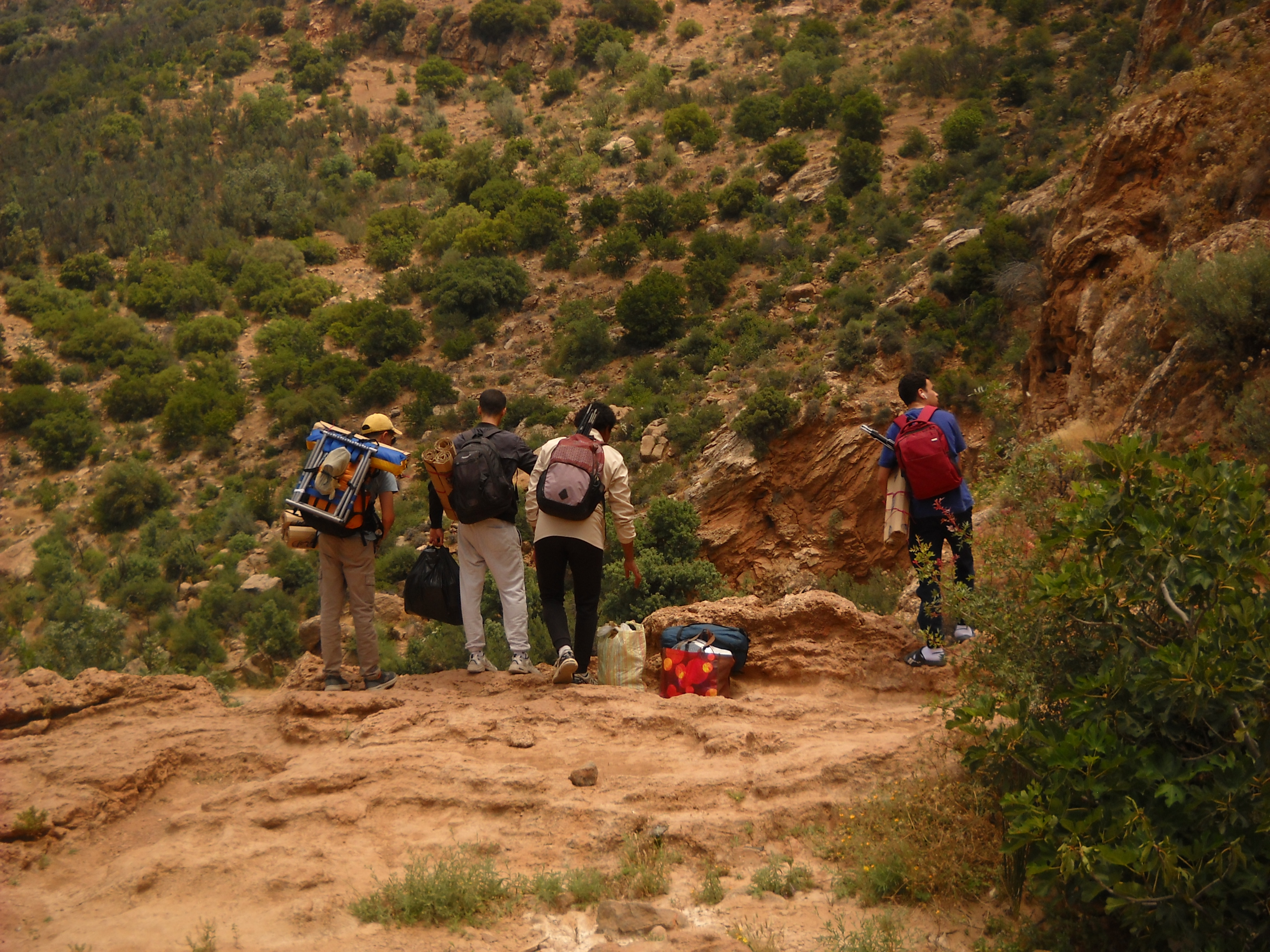
2. Image with Caption and Custom Width (HTML <figure>):

D. Audio Files (.mp3 / .wav / .ogg)
Drop an audio file like guitar-riff.mp3 into the post folder and use the native <audio> player:
4. Code Blocks (With Line Numbers & Highlighting)
Zola has built-in parameters you can pass right after the language name:
linenos: Adds line numbers.hl_lines=[2, "5-6"]: Highlights specific lines or ranges!linenostart=10: Starts numbering at line 10.
fn main() {
let server_ip = "192.168.100.12";
println!("Routing traffic to {}", server_ip); // Highlighted line 3
for port in [8096, 4533, 2283] {
// Lines 6 and 7 are highlighted
check_port(server_ip, port);
}
}5. Diagrams (Mermaid)
Because mermaid = true is set in the frontmatter, any mermaid code block automatically turns into a theme-aware diagram:
graph LR
    A[Client Browser] -->|HTTPS :443| B(Caddy Reverse Proxy)
    B -->|File Server| C[Zola Static Blog]
    B -->|192.168.100.12:8096| D[Jellyfin]
    B -->|192.168.100.12:2283| E[Immich]
6. Math Equations (KaTeX)
With math = true in the frontmatter, you can write inline math like $E = mc^2$ or $\omega = 2\pi f$, as well as full display equations:
$$ u(t) = K_p e(t) + K_i \int_0^t e(\tau) ,d\tau + K_d \frac{de(t)}{dt} $$
7. Tables & Task Lists
| Service | Local Port | Subdomain | Status |
|---|---|---|---|
| Caddy | 443 | *.yourdomain.com | Active |
| Jellyfin | 8096 | jellyfin.yourdomain.com | Active |
| Immich | 2283 | immich.yourdomain.com | Active |
Project Checklist
- Migrate reverse proxy to Caddy
- Set up Dynamic DNS with Cloudflare
- Configure Zola with the Serene theme
- Fix the Photography gallery section